Rosalia font is one of the latest font styles Instagram added for Stories, and it’s already catching a lot of attention. It has a stylish, handwritten look that feels fresh and creative. What makes it even more interesting is that it’s inspired by the famous Spanish singer Rosalia. The font reflects her bold and unique style, making it a fun choice for anyone who wants their Stories to stand out.
Instagram rolled out the Rosalia font in July this year as part of its update to give users more ways to express themselves. Since then, many people have been trying to figure out how to use it. Some already have it, while others are still waiting for it to show up in their app.
On this page, you’ll find everything you need — how to get the Rosalia font on Instagram, how to use it in your Stories, and even some fun hidden character combos that turn into cool little symbols when typed in this font. Keep reading to learn more about it all.
How to Get Rosalia Font on Instagram
Turn Camera Access Off and Back On
One thing that worked for me to get the Rosalia font on Instagram was just turning the camera access off and then back on again. I did this on my iPhone by going into the Settings app, finding Instagram, and switching the camera permission off. Then I waited a few seconds and turned it back on. After that, the font showed up.
You can try the same thing on Android too by going to your phone settings, opening the app permissions for Instagram, and doing the same — turn the camera permission off and then back on.
Just go to your phone’s Settings > Apps > Installed Apps > Instagram > Permissions > Camera. First, tap on Don’t Allow to turn off camera access. Wait a few seconds, then switch it back to Allow only while using the app.
Update the App
Instagram doesn’t always give new features to everyone at the same time. The Rosalia font might have only rolled out to certain countries or regions for now. So if you don’t see it yet, that could be the reason. Make sure your Instagram app is fully updated from the App Store or Play Store, just in case the update has reached your area. If it still doesn’t show up, you might just have to wait a bit longer until it becomes available for you, too.
Uninstall and Reinstall the Instagram App
Many users have found that uninstalling Instagram and then reinstalling it helped the Rosalia font appear. This can make the app load the latest features properly. To do this, delete the app from your phone, go to the App Store or Play Store, and download it again. After reinstalling, log in to your account and check if the font is now available. Just make sure you know your login details before you remove the app.
Check If the Font Shows on Another Account
Some users have noticed that the Rosalia font is available on one of their Instagram accounts but is missing on another, even when both accounts are used on the same device and app. This suggests that the feature may be tied to specific accounts, rather than the app version or phone. Instagram could be testing the font with selected accounts before making it more widely available. If you have access to another account, you should check there to see if the Rosalia font shows up.
How to Use Rosalia Font on Instagram
- Open the Instagram app on your phone
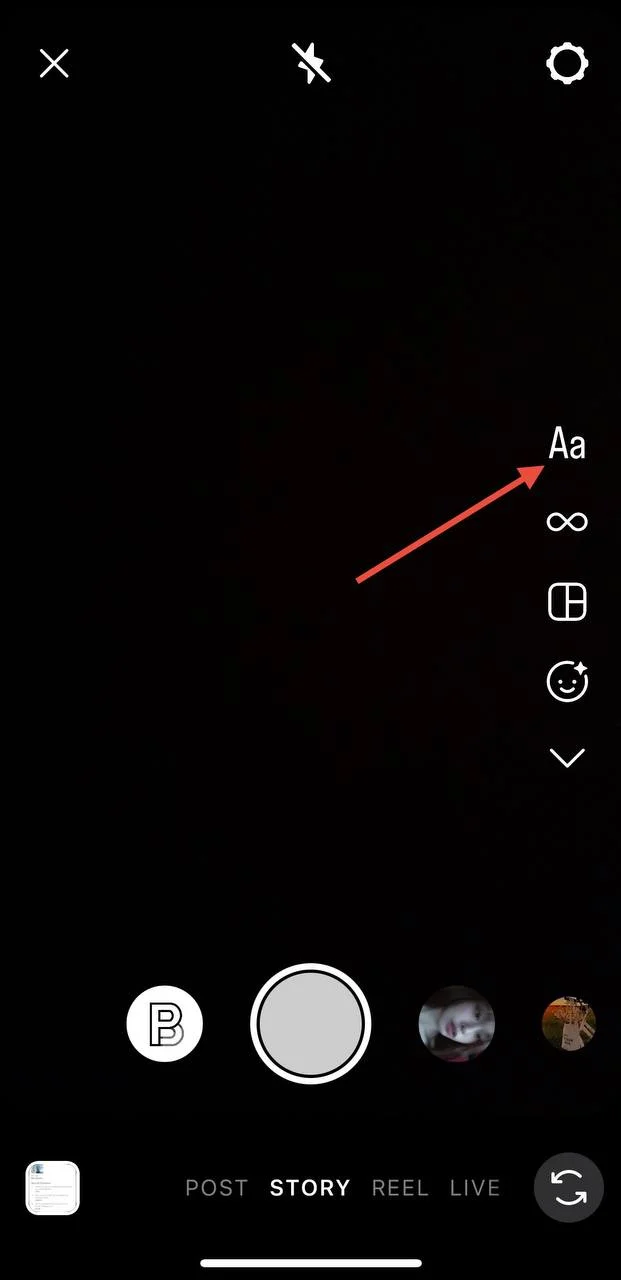
- Swipe right or tap Your Story to open the Story camera
- Take a photo or video, or just tap Aa (Text) to start with text

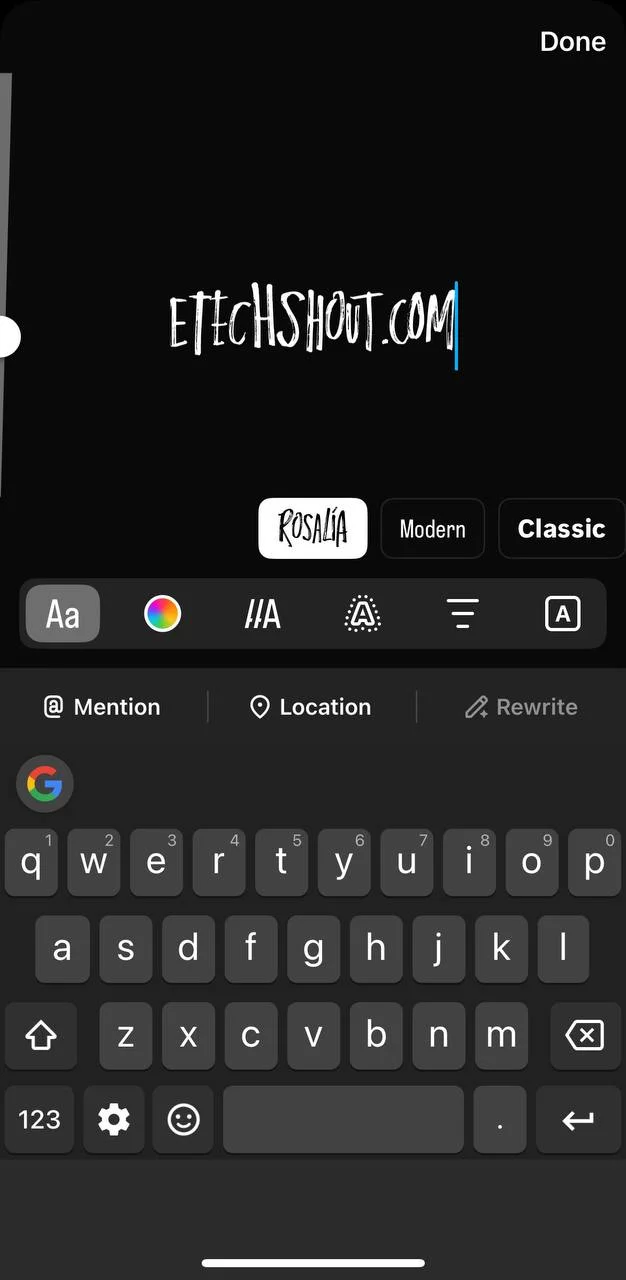
- Type anything you want
- Look through the font styles at the bottom. If Rosalia font is available for you, you’ll see it there, usually at the beginning

- If you don’t see it right away, swipe through the fonts left or right until you find it
- Once selected, you can use it for your text on Stories or Reels.
Hidden Character Combinations with the Rosalia Font on Instagram
Instagram’s new Rosalia font includes a few hidden character combinations that transform simple text into creative symbols. When typed using the Rosalia font in Stories or Reels, these combos automatically change into styled icons:
- : + – + ) →
- 3 + : + ) →
- < + 3 → ❤️
- * + * + * → ⭐
- + + + + → ✝️
To use them, simply type the combinations exactly as shown while using the Rosalia font. These can add a fun and unique touch to your Instagram content.
Hope this guide helped you figure out how to find and use the Rosalia font on Instagram. It’s such a fun and creative font to play around with, and those hidden combos just make it even more interesting.
If you got the font using one of the tips above, let us know which one worked for you! And if it suddenly showed up on your account without doing anything, we’d love to hear about it.