Instagram, one of the most popular social media platforms, has attracted a diverse user base, especially among younger generations. As its popularity grows, Instagram continues to introduce new features to improve user experience and privacy. With private accounts, users can control who can view their content, which is a noteworthy feature. Consequently, people frequently send follow requests to private accounts to access their posts or stories.
However, managing the numerous follow requests sent daily can prove challenging. Users often wonder about the status of their requests, questioning whether they have been accepted, ignored, or simply unseen by the account owner. This uncertainty can lead to frustration, particularly when attempting to connect with someone familiar or intriguing. Thankfully, Instagram offers a solution by providing a way to view the list of sent follow requests, enabling users to effectively manage their pending connections.
This article will guide you through the various methods to access and review your sent follow requests on Instagram. The article will cover accessing sent follow requests on both mobile and web versions of Instagram.
How to See Sent Follow Requests on Instagram?
If you’ve sent a follow request to someone on Instagram but can no longer find their account due to a username change, don’t worry. Follow these simple steps to learn how to view your Instagram sent requests:
- Open the Instagram app on your device (Android/iOS).
- Tap on your profile picture located in the bottom right corner of the screen.

- In the top right corner of your profile page, tap on the three horizontal lines hamburger icon.

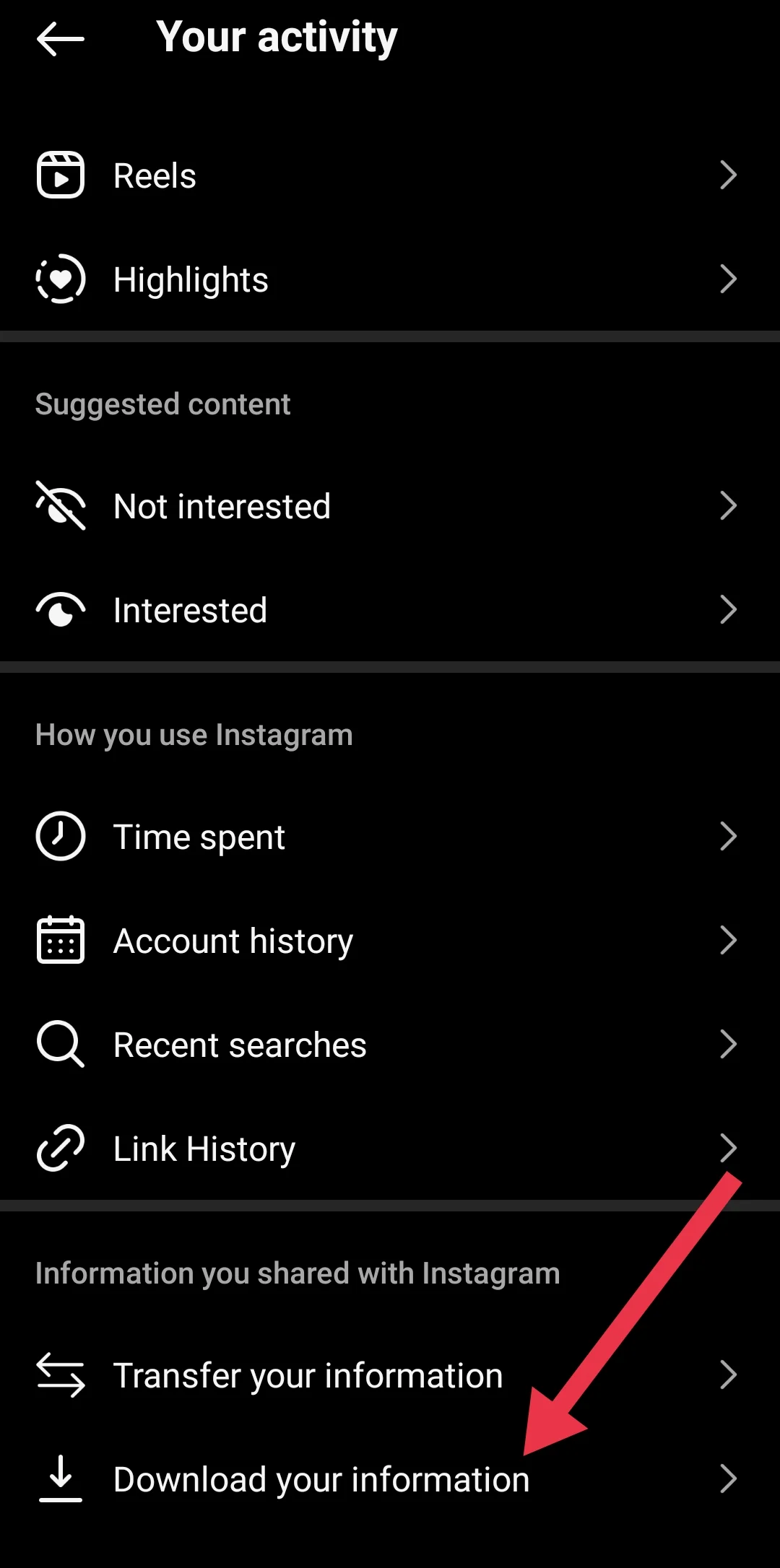
- From the menu that appears, select “Your Activity.”

- Scroll down the page until you find the option “Download your information.” Tap on it.

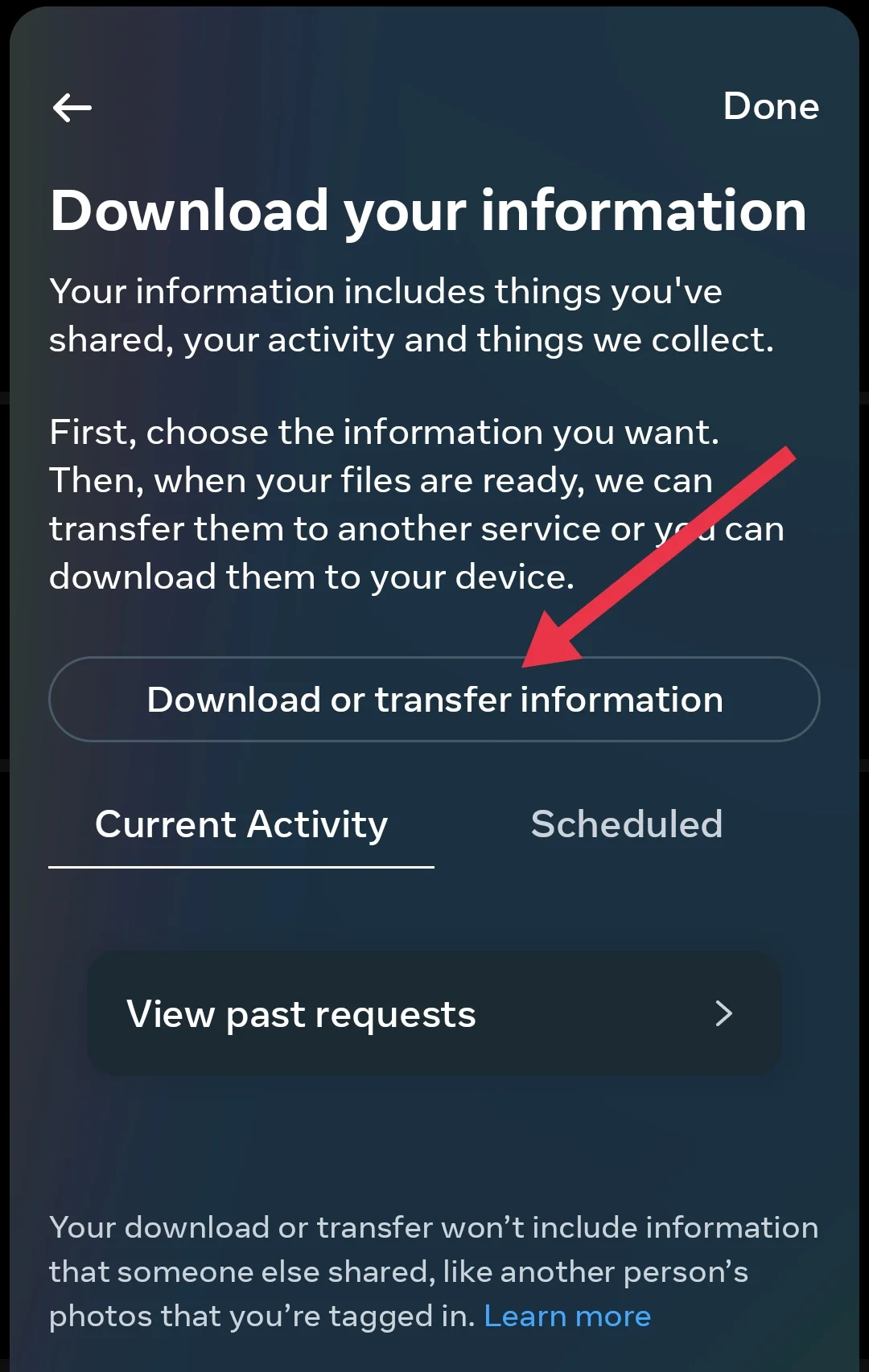
- Then tap on the “Download or transfer information” button.

- Now, select the Instagram account from which you’d sent request and click “Next”
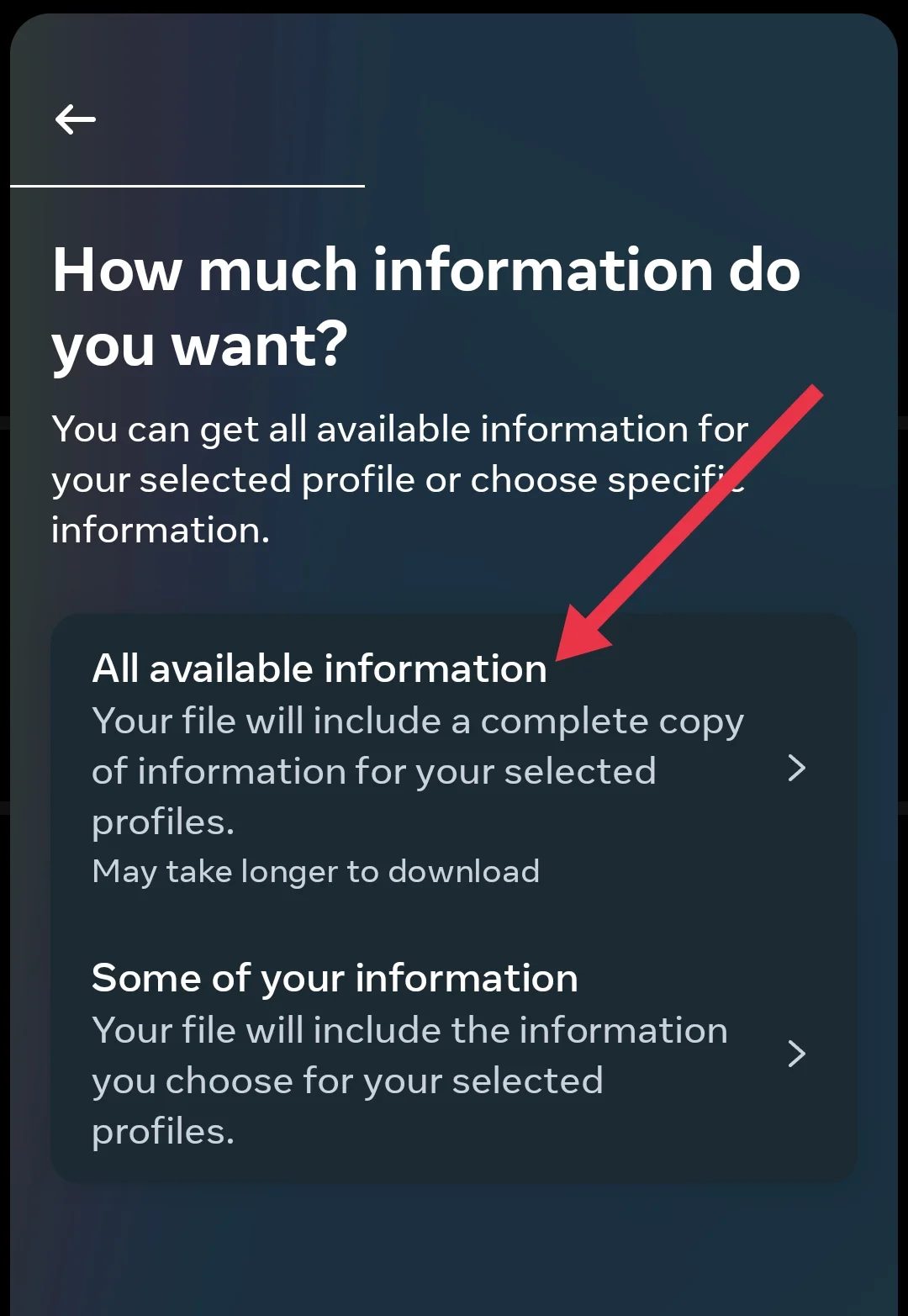
- Tap on “All available information”

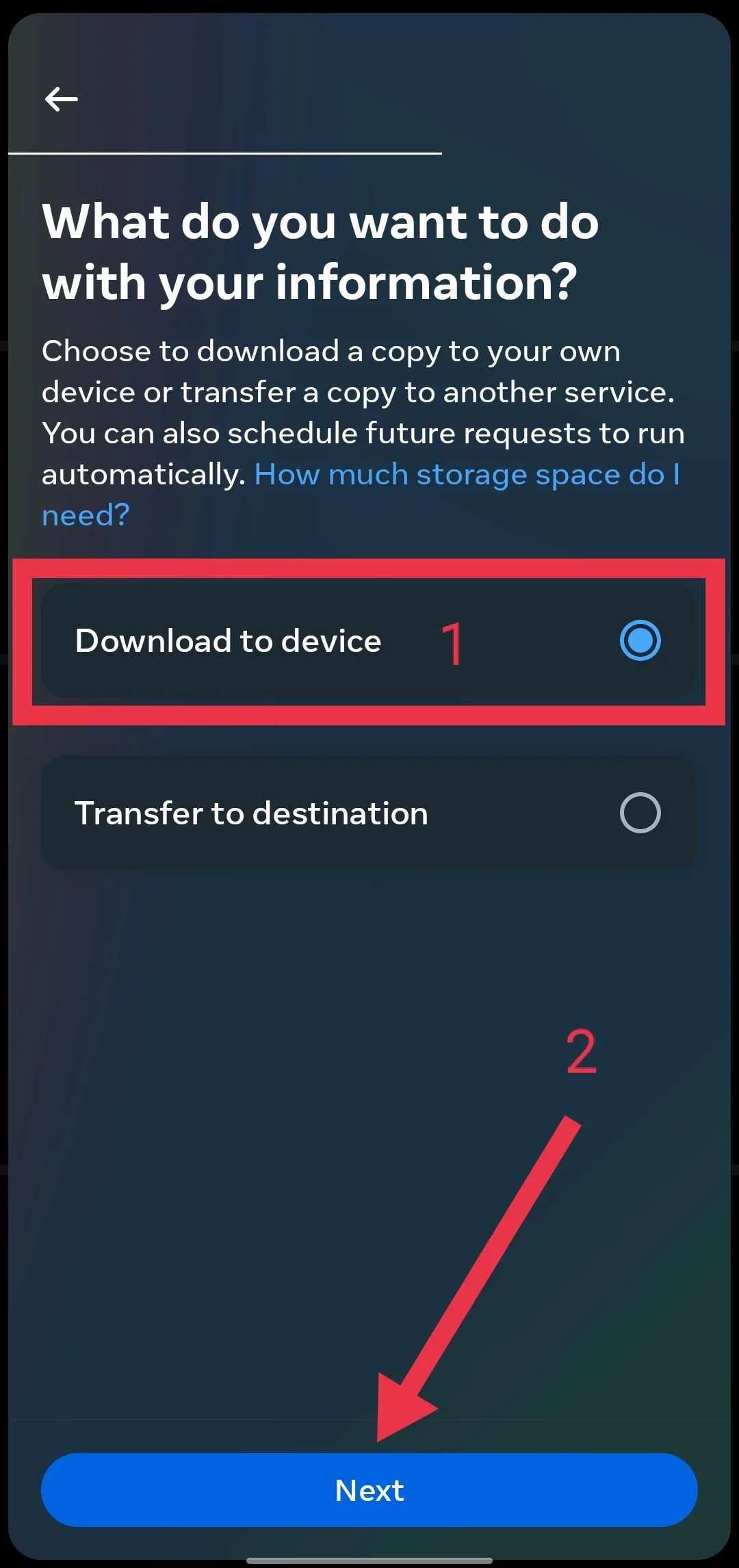
- Then “Download to device“and click “Next”

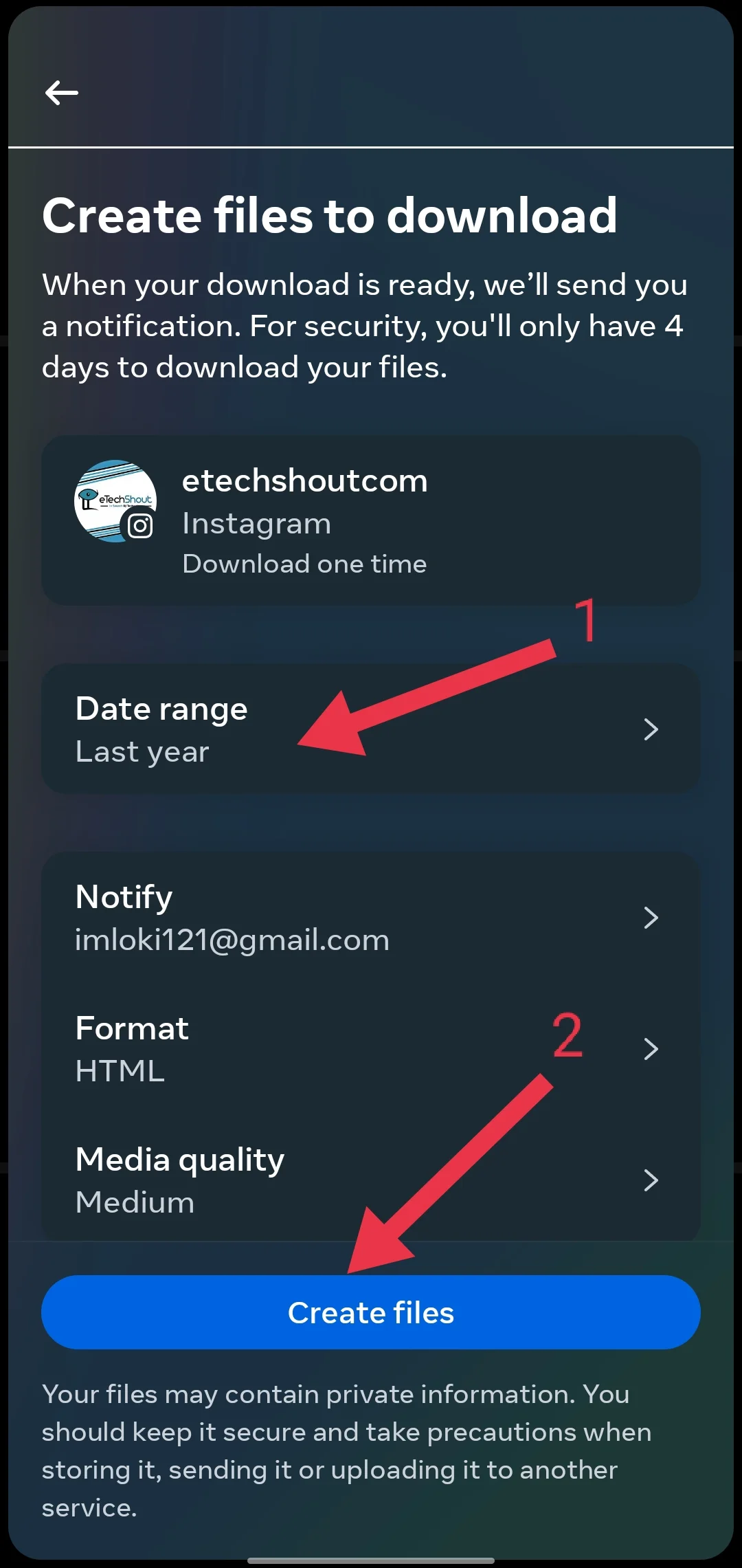
- Select the date range and click “Create files“

- You will be prompted to enter your Instagram password. So, enter your password to proceed.
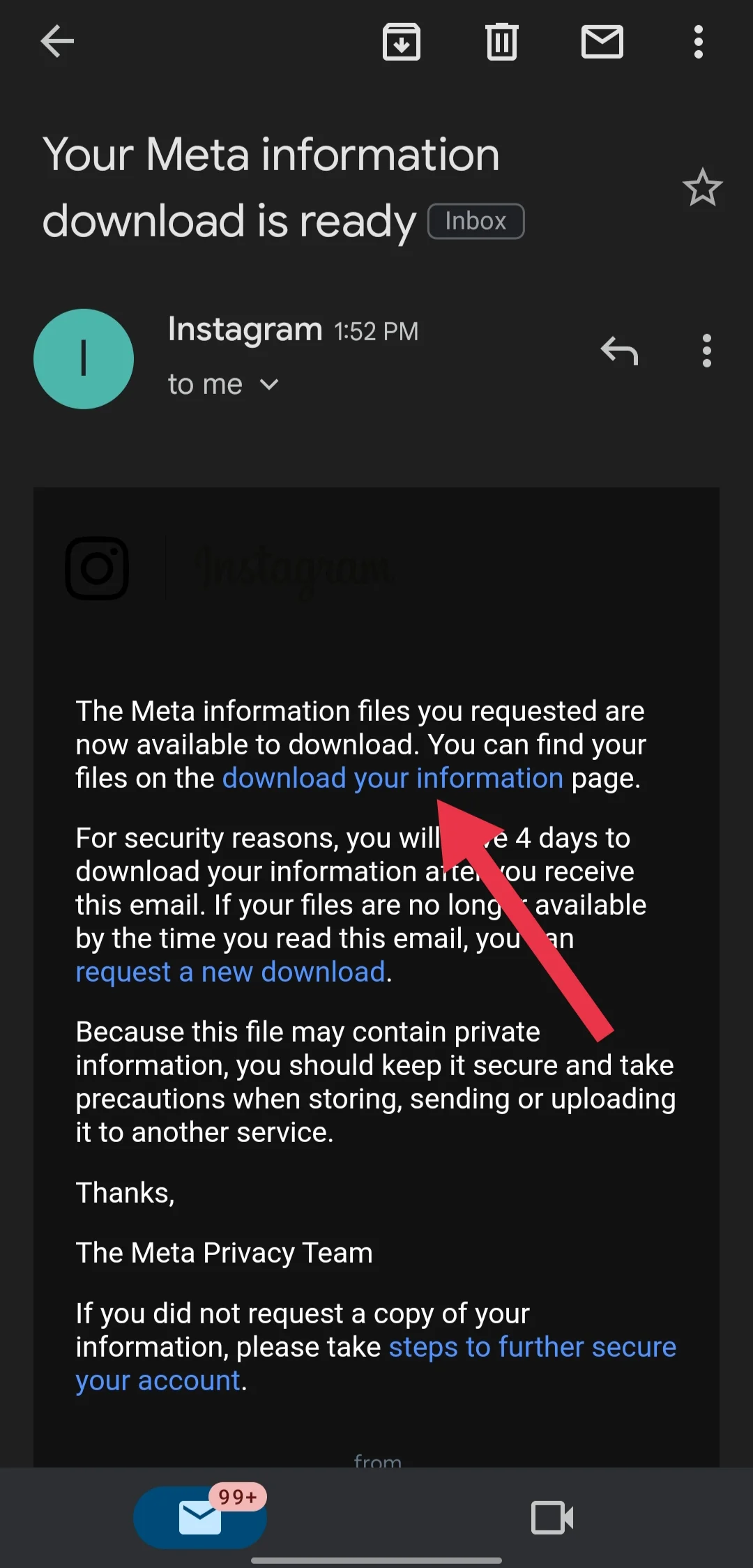
- After completing the process, Instagram will send an email to your registered email address. Open the email and tap on the “Download your information” link.

- Once the download is complete, extract the downloaded folder and look for the “followers_and_following” folder.
- Inside this folder, you will find a list of all the accounts you have sent follow requests to, including those who may have changed their usernames.


Another Method to See Follow Request Sent on Instagram
While this method may seem unusual, it can actually provide insights into your pending follow requests. When you post content on Instagram and people engage with it by liking your posts, you can access a sorted list of these interactions. To do this, simply click on the likes for one of your posts.
Once you’re viewing the list of accounts that liked your post, you’ll notice that the list is divided into two sections: your followers and the accounts you’re following. Within the “following” section, you may spot accounts that you’ve requested to follow. You can identify these by the “Requested” status next to their username.
Keep in mind that this method won’t show you a comprehensive list of all the accounts you’ve requested to follow. Instead, it will only display those accounts that have interacted with your content by liking your posts. Nevertheless, it can still provide a glimpse into some of your outstanding follow requests.
Bonus: Check a Mutual Friend’s Account
In case none of the above methods worked, try looking through the followers and following lists of a friend you have in common with the person you’re trying to find.
Many Instagram users, in an effort to gain more followers, will go through the follower and following lists of other accounts and send follow requests to everyone they find. If you’ve done this in the past, there’s a good chance you’ll spot several people on your mutual friend’s list that you’ve sent requests to.
While this method may not provide a comprehensive list of all your sent requests on Instagram, it can help you locate many of the accounts you’ve requested.
- RELATED ARTICLE: Do Instagram Follow Requests Expire
Frequently Asked Questions (FAQs)
How do I see requests I’ve sent on Instagram?
To see the follow requests you’ve sent on Instagram, go to “Your Activity,” and select “Download your information” to get a list of requests in the “followers_and_following” folder. Alternatively, check the likes on your posts to find accounts marked as “Requested.” You can also look through a mutual friend’s followers and following lists to find people you’ve sent requests to.
What happens to my follow requests if I go public?
When you switch your Instagram account to public, all your pending follow requests are automatically approved. If you have a large number of pending friend requests, Instagram will only approve a few of them.
How do you know if someone rejected your follow request on Instagram?
To know if someone rejected your follow request on Instagram, check their profile. If the “Requested” button has changed back to “Follow,” it means your request was not accepted.
When you delete a follow request on Instagram, does the person know?
No. When you delete a follow request on Instagram, the person will not receive a notification. They will only see a message that your profile is private, and they can send another follow request