Instagram has become more than just a place to share photos and videos. It is also a way to stay in touch with friends, family, and even new people. You can chat with almost anyone through direct messages, and those conversations stay private between you and the person you send them to.
The only time it feels tricky is when the account you want to message is private. If you have ever tried to reach out, you might have noticed it looks like you can only do that after sending a follow request. That can feel a little inconvenient, especially if you just want to say something without following them first.
So what happens in this situation? Can you still text a private account on Instagram without following? Let’s clear up the doubts and understand how this really works.
How to Message a Private Account on Instagram Without Following
There are a few simple ways you can send a message to a private account on Instagram. It does not matter if you follow them or not, the steps are almost the same for everyone. If you are using an iPhone or an Android phone, you can follow along without worrying about any big differences.
Send Message From Instagram DM Section
If it’s someone you already know in real life, you can send them a follow request and then drop a message. If they recognize you from your profile or what you write, they’ll likely accept and connect with you. You can also directly message them from your DM section, just like you would message someone you follow or chat with frequently, even if you don’t follow them.
- Open the Instagram app on your phone.
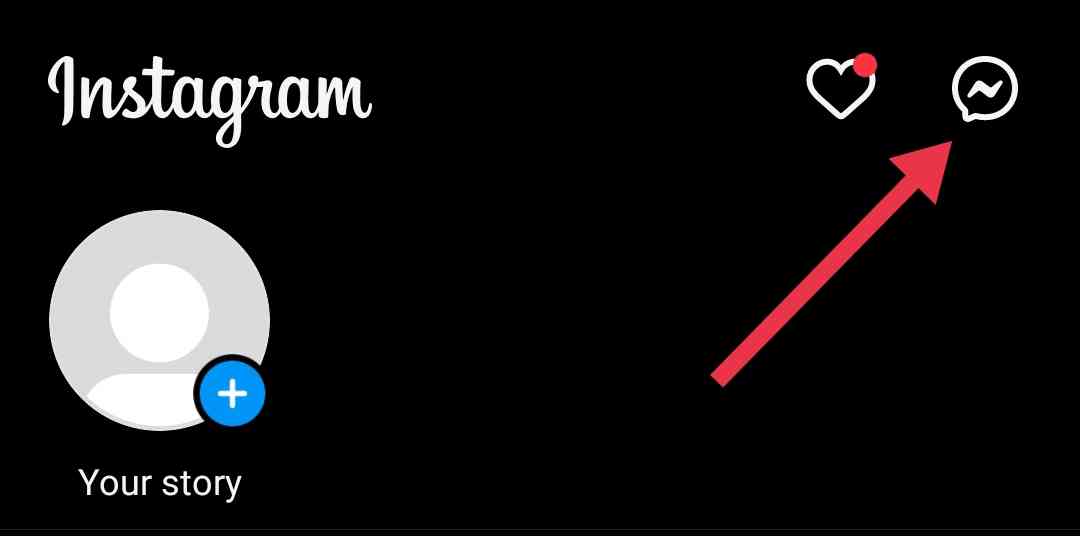
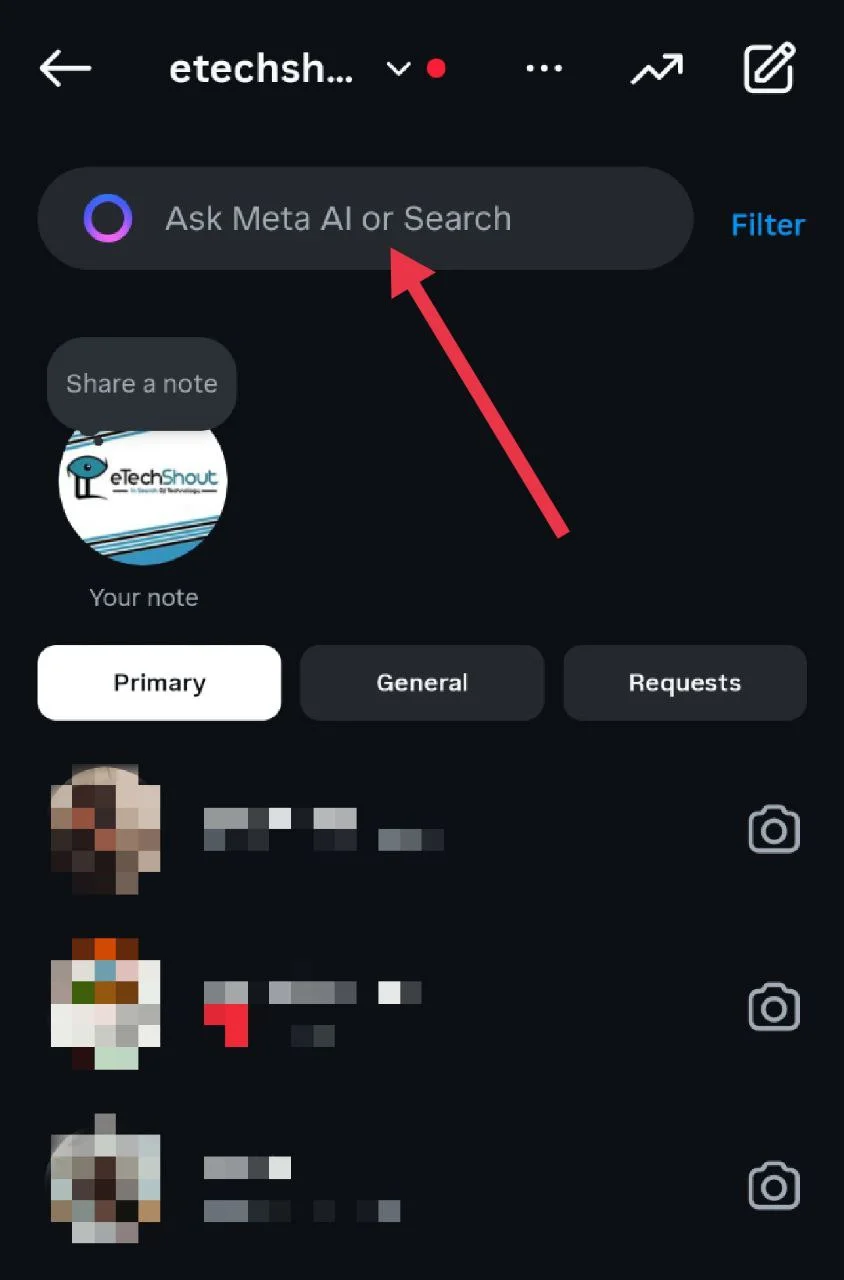
- Tap the chat or messenger icon at the top right.

- Use the search bar to type the username of the private account.

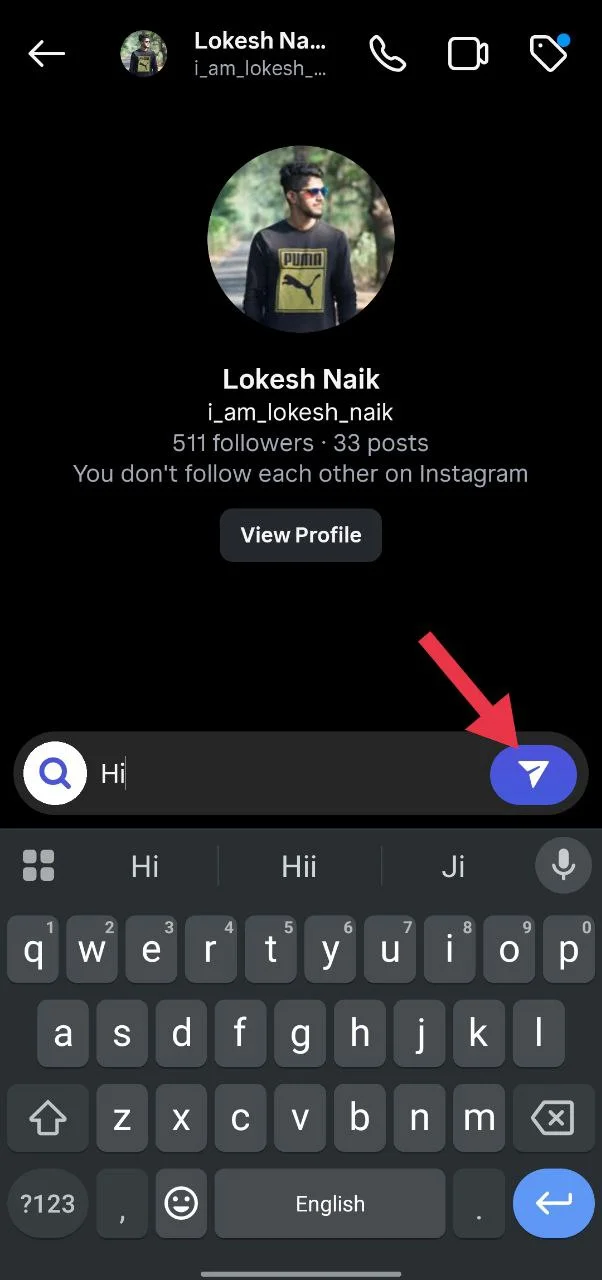
- Open their profile from the search results.
- Type your message in the box and tap the rocket icon to send.

Send a Message Request
If you think the person may not accept your follow request, but you still want to reach out, you can try sending them a message request instead. This is a handy way to share something quickly without waiting for them to follow you back.
- Open Instagram and search for the account you want to message.
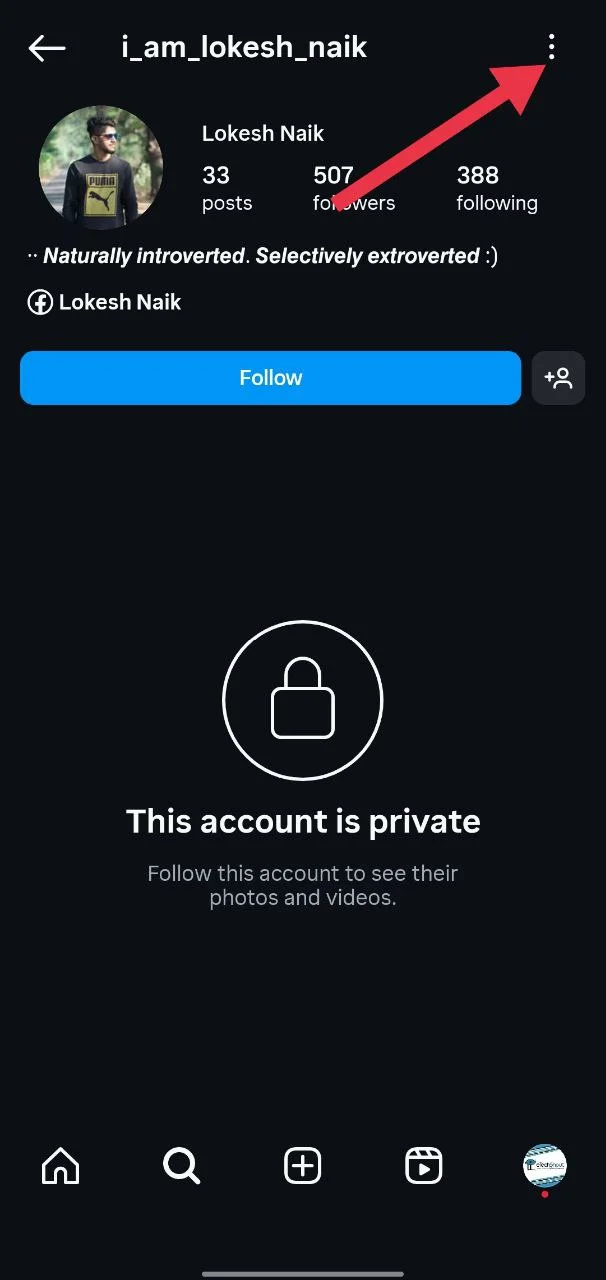
- Once you are on their profile, tap the three dots in the top right corner.

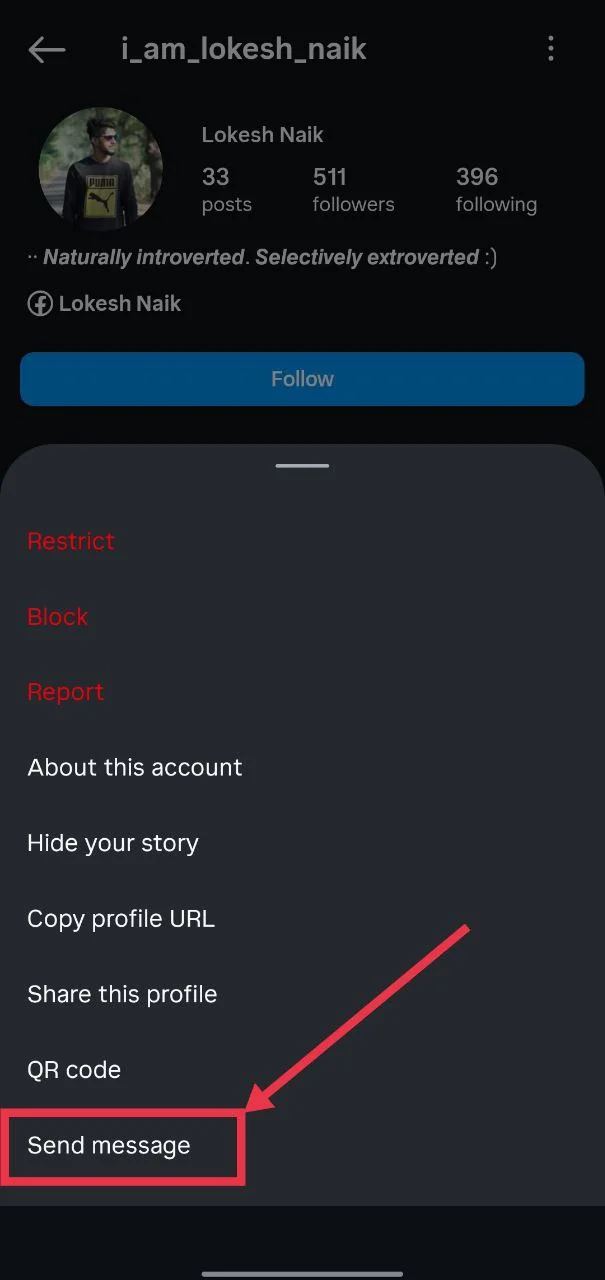
- Choose “Send Message” from the menu.

- Type what you want to say and press the rocket icon to send the message.
That is it. Your message will now sit in their Message Requests folder. It will not go directly into their inbox unless they choose to accept it. If they open and accept your request, you can continue chatting like you would with anyone else.
The only thing to remember is that Instagram does not tell you if they have already seen your message. So even if they read it, you will not know until they actually accept the request.
Follow the Account and Then Send a Message
Sometimes when you try to message someone on Instagram, you might see a note that says “You can’t message this account unless they follow you.” In that case, the only way forward is to send them a follow request first. Once they accept, you will be able to chat with them directly.
- Open Instagram and make sure you’re logged in
- Head to the profile of the person you want to reach out to.
- Tap the “Follow” button.
- Wait for them to approve your request. This may take a little time, depending on how active they are on Instagram.
- Once they accept, you can go back to their profile or open your Messages page and start a conversation right away.
When your follow request is accepted, any messages you send will land directly in their inbox, instead of sitting in the message requests folder. This makes it easier for them to notice your text and reply.
Frequently Asked Questions (FAQs)
Why is the Send Message option missing on the Instagram account?
The Send Message option may be missing because of the person’s privacy settings, or they may have blocked or restricted you.
Can I follow a private account on Instagram without sending a request?
No. You must send a follow request, and only if they accept it will you be able to see their posts and updates.
How do I check if someone has read my Instagram message?
You can check if someone has read your Instagram message by looking for the “Seen” label under your last message. If it appears with a time (e.g., Seen 5h ago), they’ve opened it. If they’ve turned off their activity status or restricted you, you may not be able to tell.