Instagram these days is part of our daily routine. We scroll, we like, we follow, all without thinking too much. Most of us don’t even know how many people we follow. And honestly, it doesn’t really matter unless you’re trying to keep track for some reason.
If you don’t follow someone yet, it’s quite easy to check. You can search for their profile and tap on it. If the page says “This account is private,” then it is clearly a private account. If you can see their posts, reels, and photos right away, then it’s a public account.
The real question comes up when you’ve been following someone for a while. You probably don’t remember if their account was private or public when you first hit that follow button. And Instagram doesn’t exactly point it out after you follow them, so it’s kind of hidden.
So, if you’ve ever wondered how to tell the difference after you’ve already followed someone, you’re not the only one thinking about it. Let’s figure it out together.
How to Check If an Instagram Account is Private or Public?
Try Sharing One of Their Posts
If you already follow the person on Instagram, this is a simple way to check if their account is private or public.
- Just open any post they’ve shared on Instagram
- Now, tap the Send icon (the little paper plane under the post).

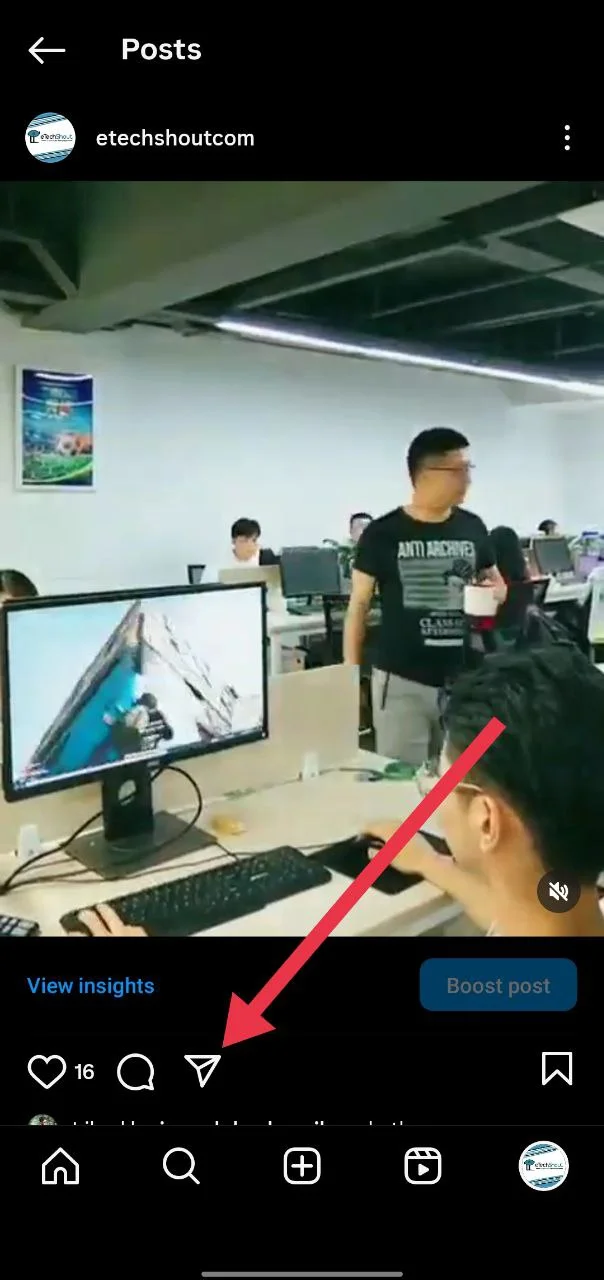
Now, If the account is private, you’ll see a message that says “The people below may not be able to see this post unless they follow [username].”
That also means the account is private, and you can only send that post to people who also follow them.
Check Using a Browser (Without Logging In)
Another easy way to check if someone’s Instagram account is private, even if you already follow them, is by using a browser without logging in. You can do this in incognito mode or any browser where you are not signed in to Instagram.
To use this method, you need to copy their profile link from the Instagram app first:
- Open the Instagram app and search for the person’s profile.
- Tap on their name to open their profile page.
- Tap the three dots in the top right corner.

- Select “Copy profile URL” from the menu.
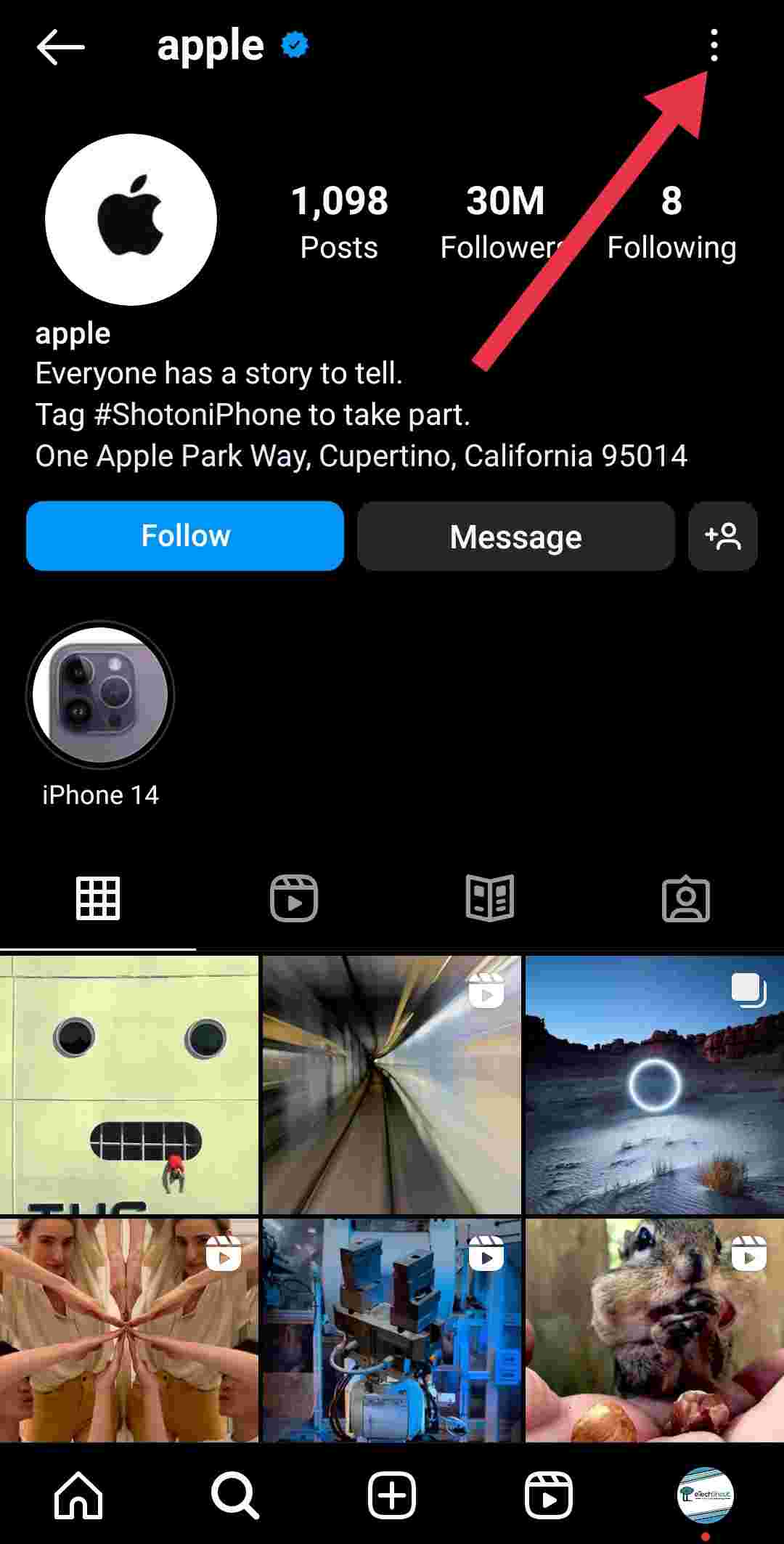
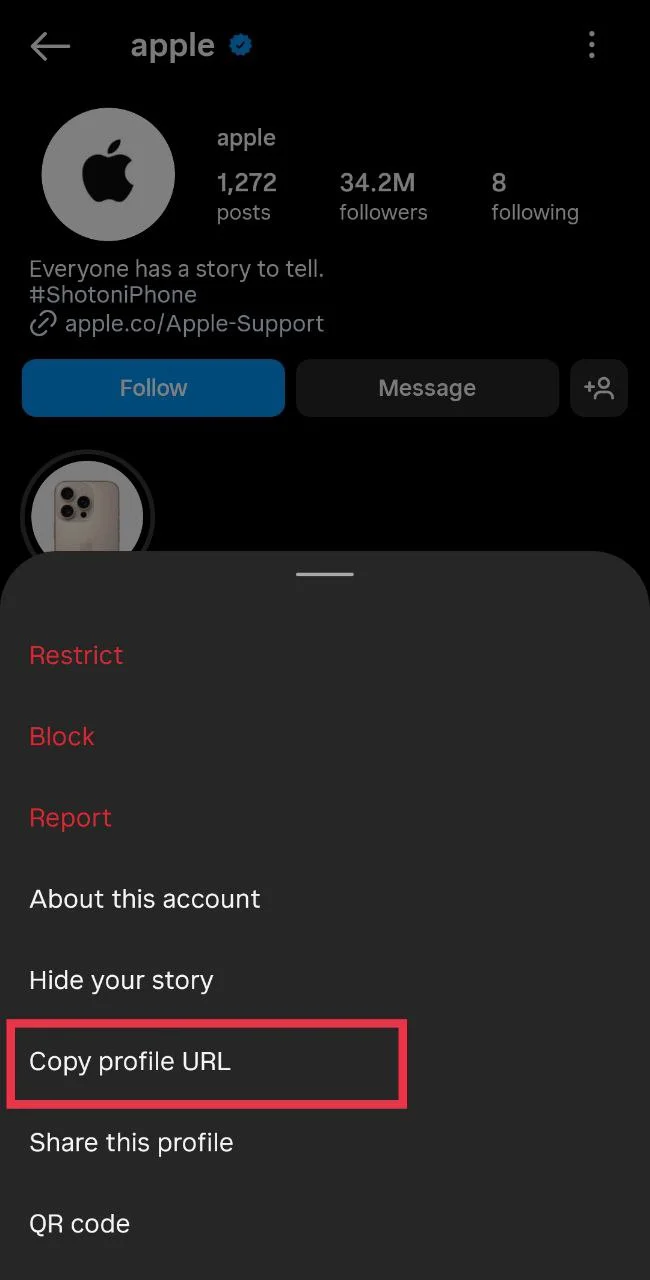
Once the link is copied, open a browser like Chrome or Edge. If you want to use incognito mode, tap the three dots in the top right of your browser and tap “New Incognito Tab”. Then paste the link in the address bar and open it.
If their posts, reels, or other content are visible, the account is public. If you see a message saying “This account is private,” then it is a private account.
This works even if you follow them already, because you’re checking the profile from outside your account. If you want to type the link manually instead, go to instagram dot com slash username using their actual username. You can find the username at the top of their profile in the app. The name below their picture is just their display name.
Check if the User’s Posts are Visible
One of the easiest ways to find out if an Instagram account is private is by visiting the profile without following them. Just open their profile and take a look. If the account is private, you will see a message that says “This account is private” and you will not be able to view their posts. On the other hand, if you can see their posts, reels, or followers list without following them, then the account is public.
Use a Different Instagram Account to Check
If you’re not sure whether someone’s account is private or public, you can try checking from another Instagram account.
You can either create a new account or use an existing one. Instagram allows users to manage multiple accounts, and you can access them by tapping the profile icon at the bottom right and selecting the desired account from the list. This feature makes it convenient to view profiles from a different perspective.
Once you’re on the other account, search for the person’s profile. Tap on their name to open the profile.
- If you can see their posts, stories, or reels without following them, then it’s a public account.
- If you see a message that says “This account is private,” then the account is private.
We’ve shared four of the easiest and simplest ways to know if someone’s Instagram account is private or public. If you have any other simple method that works, feel free to share it in the comments below!
RELATED GUIDES:
- How to View Private Instagram Profiles? (4 Ways)
- How to Make A Private Story on Instagram (3 Easy Ways)