Instagram has become one of the most popular social media platforms in recent years, thanks in large part to its ever-evolving features like Stories and Reels. Introduced in 2016, Instagram Stories allow users to share temporary photo and video that disappear after 24 hours. This feature has been used by over 500 million daily active users who enjoy sharing glimpses of their everyday moments with friends and followers.
While many people love sharing their Stories publicly with all their followers, there are times when you may want to share more personal content with a select group of close friends and family. Maybe you have some inside jokes you only want certain people to see, or perhaps you want to post something a bit more private without worrying about everyone on your follower list viewing it. This is where the private Story option on Instagram comes in handy.
By creating a private Story, you can curate a special list of people who are able to view that particular Story, while keeping it hidden from the rest of your followers. This allows you to maintain privacy over your more intimate moments and control exactly who can see certain content. In this article, we’ll walk you through 3 easy methods to create a private Story on Instagram.
How to Make A Private Story on Instagram (4 Easy Ways)
From Instagram Settings
- Open the Instagram app (Android/iOS) and go to your profile.
- Tap the three lines icon in the top right corner

- Under “Who can see your content” section, select “Hide story and live“.

- Again click on “Hide story and live” then choose the people you want to hide your story from by tapping the circle next to their names. You can also use the search bar to find someone quickly.

- Tap “Done” to save your changes.
- To share a story privately with just your close friends:
- When creating a story, tap on “Close Friends” at the bottom instead of “Your Story“.
- If you haven’t created a close friends list yet, tap “Get Started” and select the people you want to include. Tap “Done“.


Through Close Friends Option
- First, open the Instagram app on your device.
- Once you’re on the main screen, tap on the “Your Story” icon located at the top of the screen. After setting up your story by adding photos, videos, or other elements, you’ll notice two options at the bottom: “Your Story” and “Close Friends“.
- Select the “Close Friends” option. This will allow you to choose which followers you want to share your story with. Instagram will show you a list of your followers, and you can simply tap on the names of the people you wish to include in your Close Friends list.

- Once you’re happy with your Close Friends list, tap the “Done” button to save your changes. Your story will now be shared only with the people you’ve selected, keeping it private from the rest of your followers.
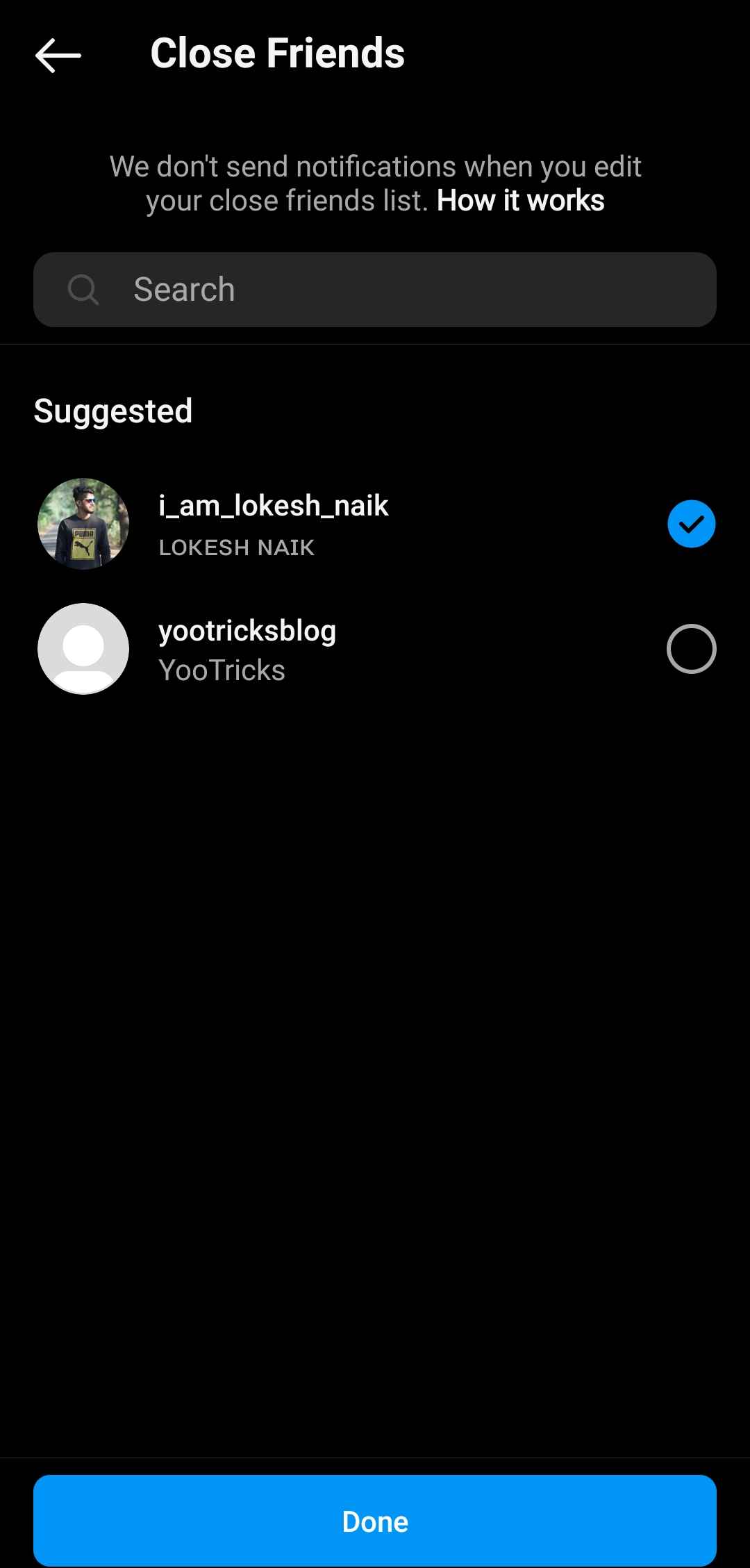
If you haven’t created a Close Friends list yet, don’t worry – there’s an alternative way to make your Instagram story private. You can go into your Instagram settings and manually select which followers you want to hide your story from. This method takes a bit more time, but it’s still an effective way to control who sees your content.
Make Your Account Private for 24 Hours
Another way to share an Instagram story privately is to temporarily switch your account to private mode while you post the story. This will restrict story viewing to only your approved followers for the 24 hours that the story is live. Here’s how to do it:
- Open the Instagram app and go to your profile by tapping your profile picture icon in the bottom right.
- Tap the three lines menu icon in the top right corner.
- Go to “Account privacy” and then toggle on the “Private Account” option. Confirm you want to switch to private mode.

- Now go back and upload the photo or video to your story that you only want your current followers to see.
- Your story will be visible to your approved followers only for the next 24 hours while your account remains private.
- After 24 hours, once the private story has expired and disappeared, you can go back into your account settings and toggle off “Private Account” to make your profile public again.

ALSO READ: –
- How to Switch Back to Personal Account on Instagram
- (Fix) Why Can’t I Switch Back to Personal Account on Instagram
By following the steps outlined in this guide, you can easily create a private Instagram story on your PC or mobile device. Got any other questions about private Instagram stories or know any other cool ways to create private stories? Let us know in the comments!
And if you found this guide useful, pay it forward by sharing it with friends or followers who could also benefit from learning how to keep their Instagram stories on the down-low.