QUICK SOLUTION: Open the Camera app, then close it completely from recent apps and try turning on the flashlight again.
A few days ago, I faced this exact issue on my mom’s phone. She asked me to turn on the torch, and when I pulled down the menu and tapped the flashlight, it just didn’t work. It showed a message saying the light was being used by another app. In fact, it was that common message you might’ve seen before: “can’t turn on torch because the light is being used by another app.” But there were no apps open, and we hadn’t touched the camera either. It was working fine earlier, so this was really confusing.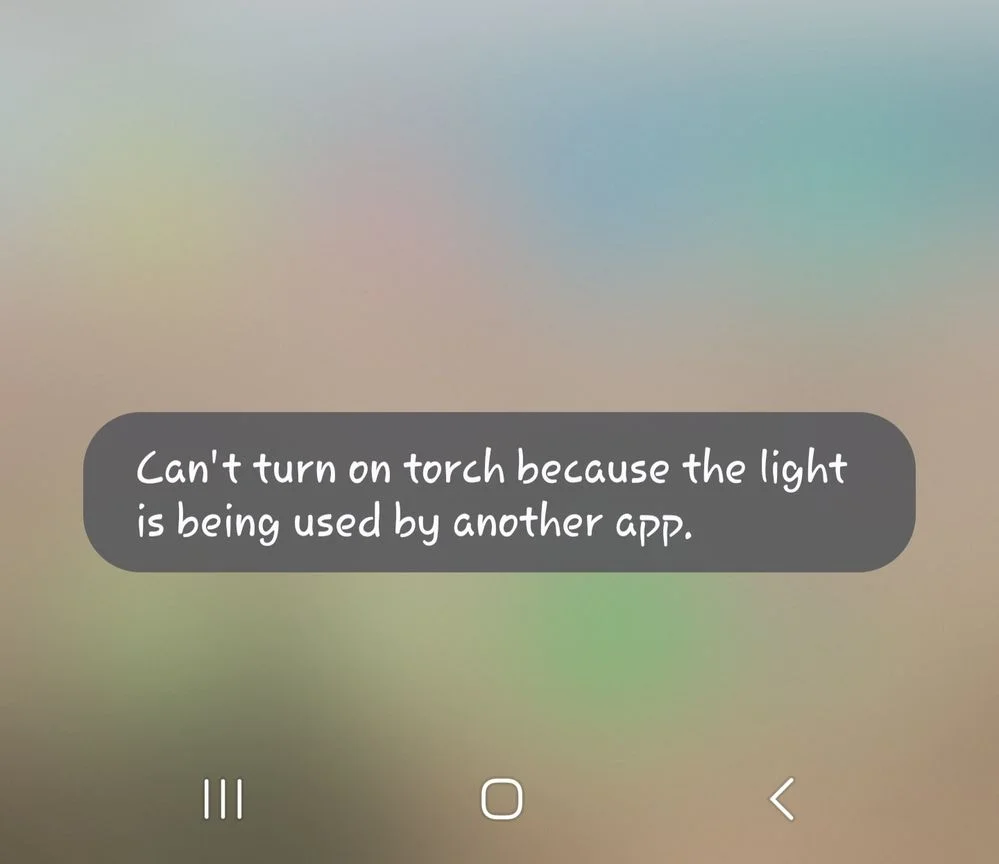
Sometimes the flashlight button is greyed out, or it shows a message like “Camera in use” even when nothing’s actually running. Everything else on the phone feels normal, but the flashlight just won’t turn on.
Out of curiosity, I searched online to see if others had the same issue, and I was honestly surprised to see how many people were talking about it. I saw folks using Samsung, Pixel, and OnePlus phones all saying the same thing. Some had their flashlight button greyed out, and others saw the same message about the camera being in use. That made me feel like this is something pretty common. Luckily, after trying a few things, I found some easy ways to fix it, which I’ll be sharing next.
Quick Fix For ‘Can’t turn on torch because the light is being used by another app’ Error
Open the Camera and Then Close It
This is the first thing I tried on my mom’s phone, and it actually worked. If your phone says the flashlight or torch is being used by another app, there’s a chance the camera app is still holding on to the flash in the background—even if you didn’t open it yourself. This can sometimes happen if the camera was used recently, or if an app that uses the camera didn’t fully close.
An easy fix for it is, open the Camera app on your phone and then close it by swiping it away from the recent apps screen.
After doing this, try turning on the flashlight again from the quick settings or pull-down menu. For me, the flashlight worked right away after closing the camera properly.
Restart the Device
Sometimes, the simplest solution is the one that works best — and restarting your phone is a great example of that. It may seem silly, but a regular restart can fix all kinds of temporary issues, including the one where your flashlight does not turn on.
Just press and hold the power button, then tap restart. If your phone doesn’t have a restart option, switch off your device and then switch it back on after a few seconds. Once it powers up, try turning on the flashlight again.
Check Which Apps Are Using the Camera
Sometimes, your flashlight won’t turn on because some other app is quietly using the camera in the background. You may not even notice it. Maybe it’s an app you opened earlier or one that just runs on its own without asking. Apps like TikTok, Snapchat, and Instagram are known to use the camera in the background, and a lot of people have faced flashlight issues because of that, especially if those apps are installed or used often. Either way, blocking camera access for those apps can help.
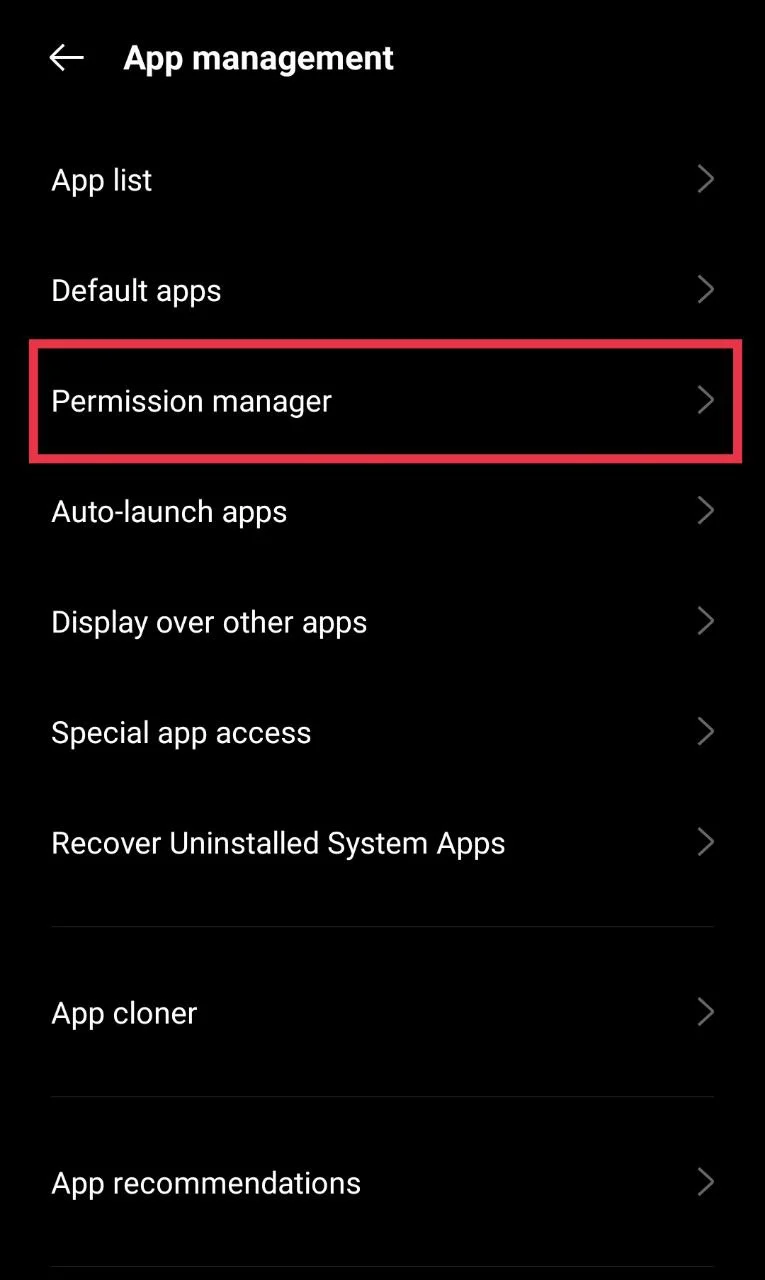
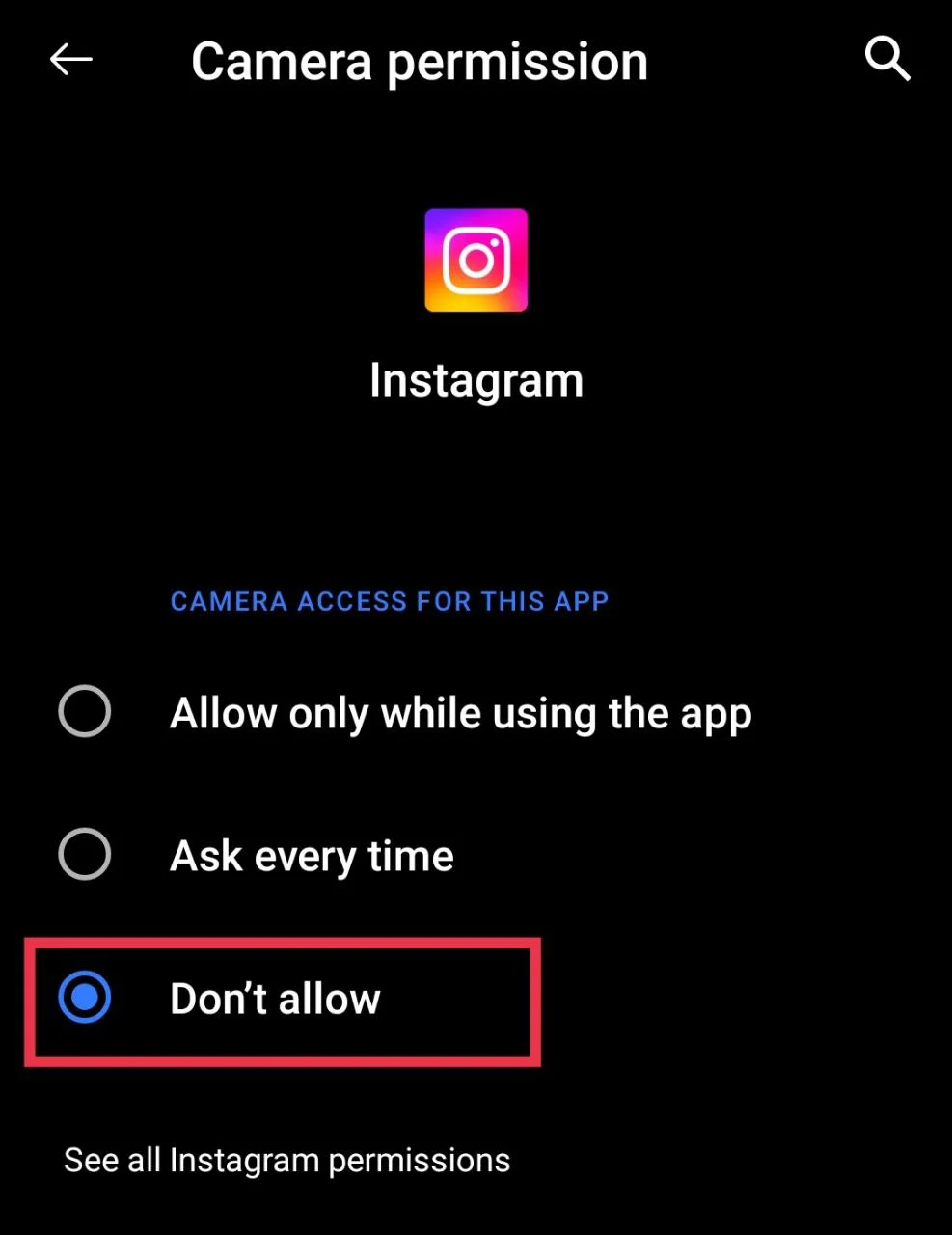
- So, to fix it, open the device Settings, then search and tap on Permission Manager.

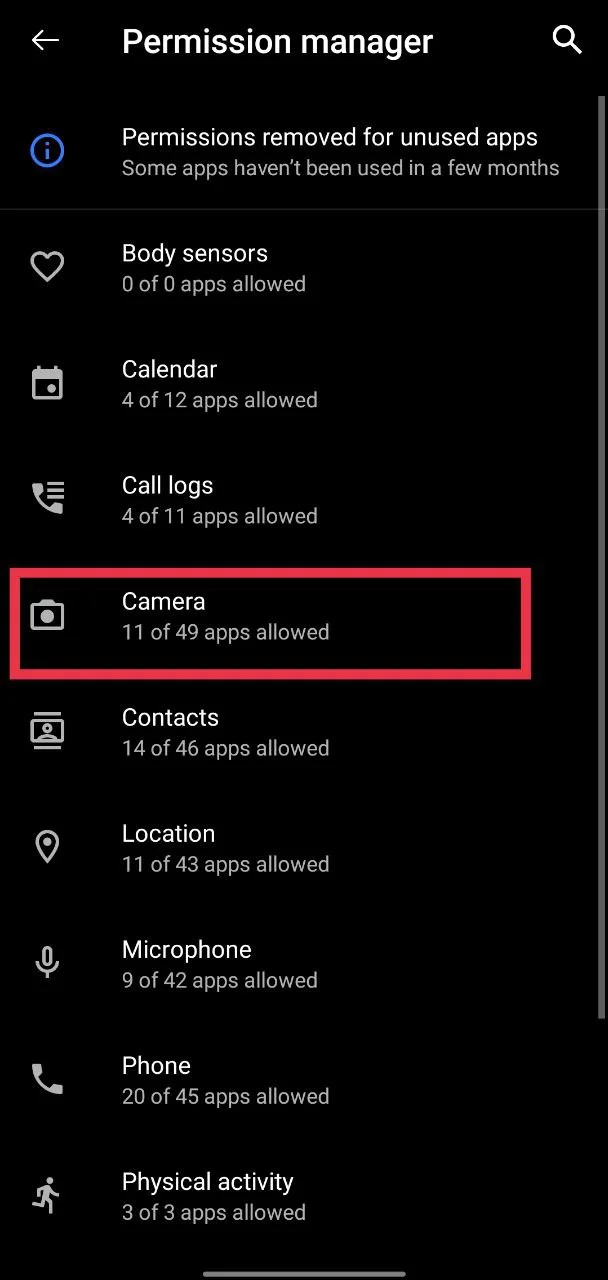
- Now tap on Camera. You’ll see a list of all apps that have camera access.

- Go through the list and tap Don’t allow for any apps you don’t need using the camera, at least for now. Once you’ve done that, try switching on the flashlight again.

Clear Camera App Cache and Data
If the flashlight still refuses to turn on, the issue could be with the camera app itself. To fix this, go to Settings > Apps > Camera from the list. Next, tap on Storage, then choose Clear Cache. After that, try using the flashlight again. If it still does not work, go back and tap on Clear Data as well. This will reset the camera app settings but will not remove any of your photos or videos.
Reset Camera Features and Quickly Enable Flashlight After Reboot
Several users have reported success with a more detailed method that involves adjusting camera settings, changing screen lock options, and restarting the phone. While it may seem unusual, this approach has worked for many, especially on Google Pixel devices.
- Go to Settings and check for any available system updates. Also, open the Play Store and update the Camera app if there’s a pending update.
- After that, open the Camera app, go to Frequent Faces, and turn it off. Wait a few seconds, then turn it back on.
- Go to your device Settings > Security, and set your screen lock method to Swipe. This is only temporary and can be changed back later.
- Hold the Power button and restart your device.
- Turn on the flashlight quickly after reboot
- As soon as your phone finishes restarting, pull down the notification panel and tap the flashlight button quickly. If it doesn’t work right away, tap it a few times until it turns on.
RELATED GUIDES:
- [FIXED] Camera error, please re-enable it later or restart the phone to recover
- How to Fix Camera Failed on Samsung (Easy & Quick Solutions!)
- How to fix ‘unable to use camera as the front camera is being used’ error
Update the Camera App First, Then Try a Factory Reset
If nothing else is working and still getting “can’t turn on torch because the light is being used by another app”, this might be your last option. First of all, open the Play Store and check if there’s an update available for the Camera app.
If that doesn’t help, you might want to try a factory reset. This will wipe your phone and take it back to how it was on day one. So before doing this, make sure you back up everything that’s important — your photos, contacts, apps, and anything else you don’t want to lose. To reset, open Settings > System > Reset options > Erase all data.
This is a big step, but for some people, it’s the only thing that finally fixed the issue. Try this only if you’ve tried everything else and still can’t turn the flashlight on.