eTechShout
  • TECH
  • HOW TO
    • ANDROID
    • iOS
    • WINDOWS
  • TOP LIST
  • ALTERNATIVES
  • REVIEWS
  • COMPARISON
No Result
View All Result
  • TECH
  • HOW TO
    • ANDROID
    • iOS
    • WINDOWS
  • TOP LIST
  • ALTERNATIVES
  • REVIEWS
  • COMPARISON
No Result
View All Result
eTechShout
Home HOW TO

How to Send Reels to Yourself on Instagram (Quick & Simple)

by Lokesh Naik
November 3, 2025

Instagram Reels have taken over the app these days. People love watching short clips filled with funny moments, daily hacks, travel shots, and creative edits. It’s that quick escape where you open Instagram for a few minutes and end up watching one video after another.

There are times when you find a Reel that you really like or one that’s actually useful, maybe a new workout move, a recipe idea, or a simple trick that makes life easier. You might not want to share it with anyone, but you still want to keep it safe so you can check it out later. That’s where sending Reels to yourself comes in handy.

It’s a cool and easy way to keep all your favorite Reels in one place. Everything you send to yourself stays in your chat, ready to watch again whenever you feel like it. You no longer have to search through your saved posts or wonder where you saw that one helpful video. It saves time and makes scrolling through your favorite content much easier on both Android and iPhone.
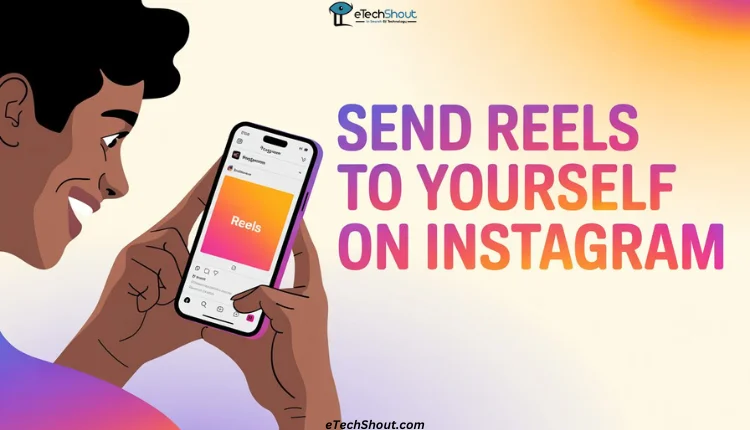
Step-by-step guide showing how to send Reels to yourself on Instagram on Android and iOS

  • How to Send Reels to Yourself on Instagram on Android and iPhone
  • Frequently Asked Questions (FAQs)
    • Can I send a message to myself on Instagram?
    • How do I share an Instagram reel to my own Instagram?

How to Send Reels to Yourself on Instagram on Android and iPhone

If you use Instagram on Android or iPhone, you can easily send your favorite Reels to yourself. Just make sure your app is updated to the latest version before you try this. You can check for updates on the Google Play Store or the Apple App Store.

  1. Open the Instagram app on your phone 
  2. Now, find a Reel you want to keep for yourself.
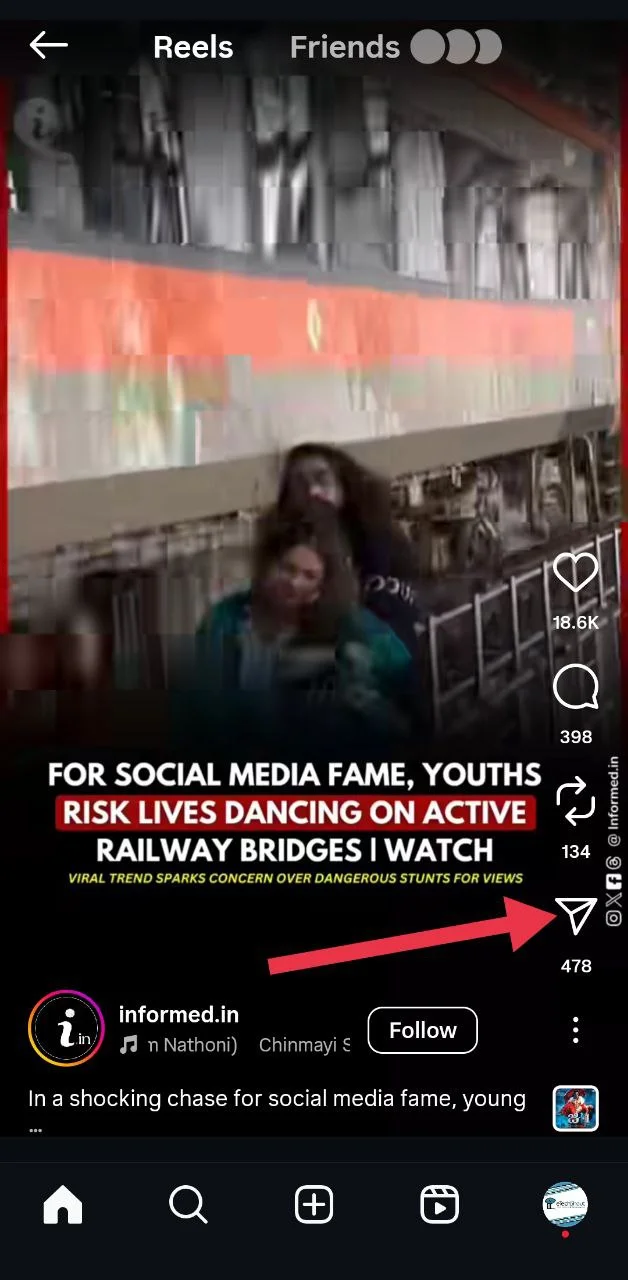
  3. Tap the paper airplane (share) icon next to the Reel.
    Tap the paper airplane icon below the Instagram Reel to open the share option
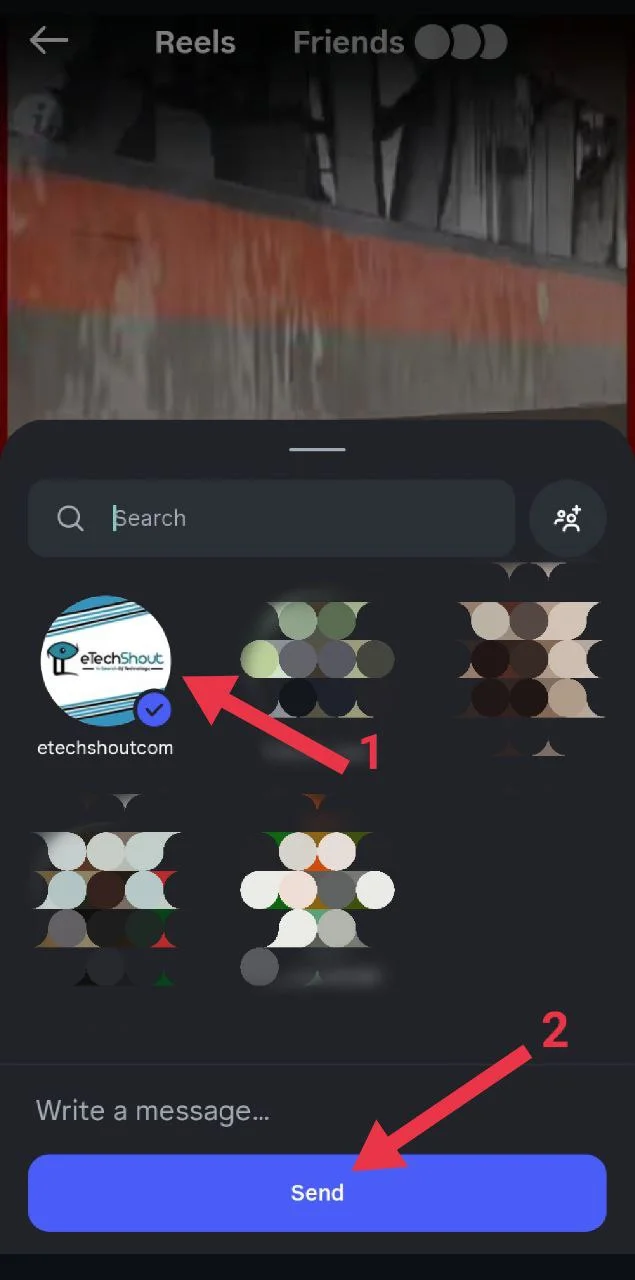
  4. In the search bar, type your own name or username and tap on your profile when it appears.
  5. Now tap the “Send” button.Type your own name or username in the search bar, select your profile, and tap Send to share the Reel with yourself

That’s all you need to do. The Reel will appear in your Instagram messages under a chat with your own name. Open that chat anytime to see all the Reels you’ve sent to yourself. It’s a neat way to save your favorite ones in one place without having to save or bookmark them.

We hope this guide helped you understand how to send Reels to yourself on Instagram. If you know any other way to share Reels with yourself, feel free to mention it in the comments. And if you found this helpful, don’t forget to share it with others.

RELATED GUIDES: – 

  • Instagram Showing the Same Reels? Here’s the FIX!
  • How to Share Full Reels on Instagram Story (4 Easy &Working Methods)
  • How to See Liked Reels on Instagram (Android/iOS/Web)
  • How to See Recently Watched Reels on Facebook (Guide)

Frequently Asked Questions (FAQs)

Can I send a message to myself on Instagram?

Yes, you can. Instagram lets you send Reels or messages to yourself.

How do I share an Instagram reel to my own Instagram?

To share a Reel to your own Instagram chat, open the Reel you like and tap the paper airplane icon. In the search bar, type your own username, select your profile, and tap send.


Tags: Instagram
ShareTweetSendPinPinShareShareSend
Lokesh Naik

Lokesh Naik

Lokesh Naik is an avid blogger and internet freak who is behind this blog. A tech enthusiast and fan of smartphones who keeps track of every little happening in the smartphone world. When not writing, he loves watching cricket.

Related Posts

Complete guide to login to Instagram without recovery code using backup codes, login link, Facebook, SMS, WhatsApp, and account recovery options

How to Login to Instagram Without Recovery Code [2026 GUIDE]

February 13, 2026
Steps to fix Instagram Insights not working or unavailable on your account

How to Fix Instagram Insights Not Working or Unavailable

January 29, 2026
Steps to fix the “You Can Only Add 3 Hashtags” error on Instagram using app and web methods

How to Fix “You Can Only Add 3 Hashtags” Error on Instagram

January 5, 2026
Complete guide to change your age on Instagram using Android, iPhone, or a desktop browser

How to Change Age on Instagram [Android, iPhone, & Desktop]

January 3, 2026

Recent Posts

Complete guide to login to Instagram without recovery code using backup codes, login link, Facebook, SMS, WhatsApp, and account recovery options

How to Login to Instagram Without Recovery Code [2026 GUIDE]

February 13, 2026
Quick guide on how to resolve CapCut “Too Many People Are Using This Feature Now” error on Android, iOS, Windows, and Mac devices

How to Fix CapCut “Too Many People Are Using This Feature Now” Error

February 12, 2026
Quick easy guide on how to fix facebook daily limit reached error

How to Remove Daily Limit Reached on Facebook [QUICKLY]

February 11, 2026
Quick fix guide for Facebook Messenger Couldn’t Send error on desktop and mobile

How to Fix Facebook Messenger “Couldn’t Send” Error

February 10, 2026
Step by step guide to fix X Twitter playback error on Android

How to Fix X/Twitter Playback Error [100% Works]

February 9, 2026
  • Disclaimer
  • Privacy
  • Contact Us
  • About Us
  • eTechShout Team

Copyright © 2026 All Rights Reserved.

No Result
View All Result
  • TECH
  • HOW TO
    • ANDROID
    • iOS
    • WINDOWS
  • TOP LIST
  • ALTERNATIVES
  • REVIEWS
  • COMPARISON

Copyright © 2026 All Rights Reserved.