eTechShout
  • TECH
  • HOW TO
    • ANDROID
    • iOS
    • WINDOWS
  • TOP LIST
  • ALTERNATIVES
  • REVIEWS
  • COMPARISON
No Result
View All Result
  • TECH
  • HOW TO
    • ANDROID
    • iOS
    • WINDOWS
  • TOP LIST
  • ALTERNATIVES
  • REVIEWS
  • COMPARISON
No Result
View All Result
eTechShout
Home HOW TO

How to Fix Please install Skype from the Windows Store for the best experience Error?

by eTechShout Editor
October 27, 2020

Fix-please-install-skype-from-windows-store-for-best-experience-error


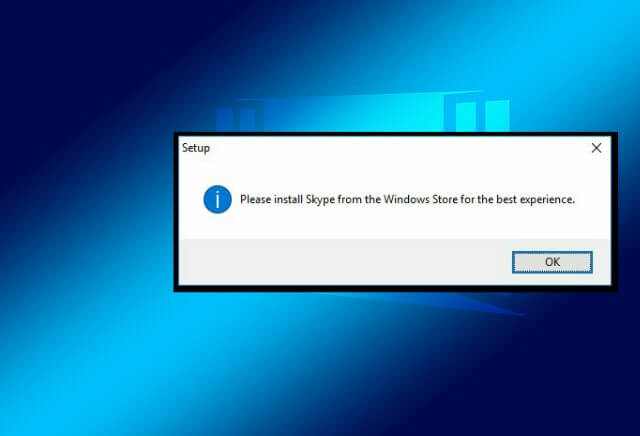
When we download Skype from an unknown source and install it in Windows, we will get an error message saying “Please install Skype from the Windows Store for the best experience”. The reason is that Microsoft doesn’t let you run Skype from unauthorized sources, instead wants you to use the version from Windows Store. So the Windows OS detects that Skype is not installed from the official Windows Store and it is downloaded from third-party sites. You can easily fix this simple issue from the below-mentioned methods to get rid of the error.

Also Read: – 8 Easy Ways To Speed Up Your Windows

Method 1

  • How to Fix Please install Skype from the Windows Store for the best experience Error?
  • Fix Install Skype from the Windows Store for the best experience Error
      • What is an elevated command prompt?
      • How to start an elevated command prompt?

How to Fix Please install Skype from the Windows Store for the best experience Error?

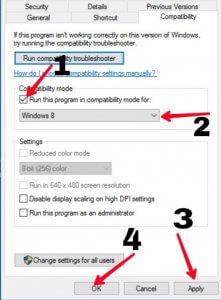
  1. Download the Skype from the official Skype website
  2. If you have already downloaded the Skype installation file then skip above step
  3. Now Right click on the Skype installation file
  4. Select “Properties”
  5. Click on “Compatibility”
  6. Now tick on “Run this program in compatibility mode for”
  7. Then select “Windows 8” or “Windows 7”
  8. Click “Apply” and OK
  9. You are done! Now you can use Skype without ‘Please install Skype from the Windows Store for the best experience’
how-to-fix-please-install-skype-from-windows-store-for-best-experience-error


Also Read: – How to Fix ‘Use Other Installation Disc that Says 64-bit’ Error

Method 2

Fix Install Skype from the Windows Store for the best experience Error

 The above method doesn’t work for everyone. So here is another method to fix the ‘Please install Skype from the Windows Store for the best experience’ error using an elevated command prompt.

  1. Navigate to the folder containing the Skype setup file. Example – pushd C:\Users\Lokesh\Downloads\Programs
  2. Now open Elevated Command prompt by opening a command prompt as an Administrator
  3. Now run the setup file with “/Silent”. Example – C:\Users\lokesh\Downloads\Programs>Skype -8.12.0.2.exe /silent
  4. Hit Enter to fix the issue.

What is an elevated command prompt?

Elevated command prompt lets you launch programs or access files that require Administrative privileges.

How to start an elevated command prompt?

Search for command prompt. Right click on it and run it as an Administrator to start the elevated command prompt.

That’s all about how to fix the ‘Please install Skype from the Windows Store for the best experience’ error in Windows. Do comment on which method helped you to fix this issue. If you have any questions related to any of the methods above, feel free to ask in the comments section.


Tags: BugErrorFixSkypeWindows
ShareTweetSendPinPinShareShareSend
eTechShout Editor

eTechShout Editor

Freelancer and writer who keeps a close eye on new technologies. He writes about the best apps/games, how-to tips, tutorials especially on Android, iPhone, computers, Windows, Linux, and Mac.

Related Posts

Guide steps to fix Gigabyte Control Center not working

Gigabyte Control Center Not Working? Quick Fix is Here!

November 26, 2025
Guide showing steps to fix the Kwik Rewards app not working issue on Android and iOS

How to Fix Kwik Rewards App Not Working [EASY 100% Works]

November 17, 2025
Step-by-step guide to fix Lively Wallpaper not working issue on Windows

How to Fix Lively Wallpaper Not Working [12 Easy Ways]

November 5, 2025
Step-by-step guide to fix “Settings Suggestions keeps stopping” issue on Android phones

Settings Suggestions Keeps Stopping? Here’s the FIX That Works!

October 27, 2025

Recent Posts

Complete guide showing how to fix Walmart Receipt Lookup not working

Walmart Receipt Lookup Not Working? Here’s How to Fix It!

December 10, 2025
Simple and quick guide to fix Pokemon Bank not working issue

How to Fix Pokemon Bank Not Working Problem [8 Ways]

December 9, 2025
Straightforward steps to fix the Microsoft Teams 9hehw error on Android, iPhone, Mac, and Windows

How to Fix Microsoft Teams 9hehw Error [Android/iPhone/Mac/Windows]

December 8, 2025
Guide showing how to stop people from tagging or mentioning you on the Threads app and Threads website

How to Stop People from Tagging or Mentioning You on Threads

December 8, 2025
Steps to hide online status on Threads across phone and desktop

How to Turn Off Active Status on Threads (Android/iOS/Desktop)

December 3, 2025
  • Disclaimer
  • Privacy
  • Contact Us
  • About Us
  • eTechShout Team

Copyright © 2025 All Rights Reserved.

No Result
View All Result
  • TECH
  • HOW TO
    • ANDROID
    • iOS
    • WINDOWS
  • TOP LIST
  • ALTERNATIVES
  • REVIEWS
  • COMPARISON

Copyright © 2025 All Rights Reserved.